
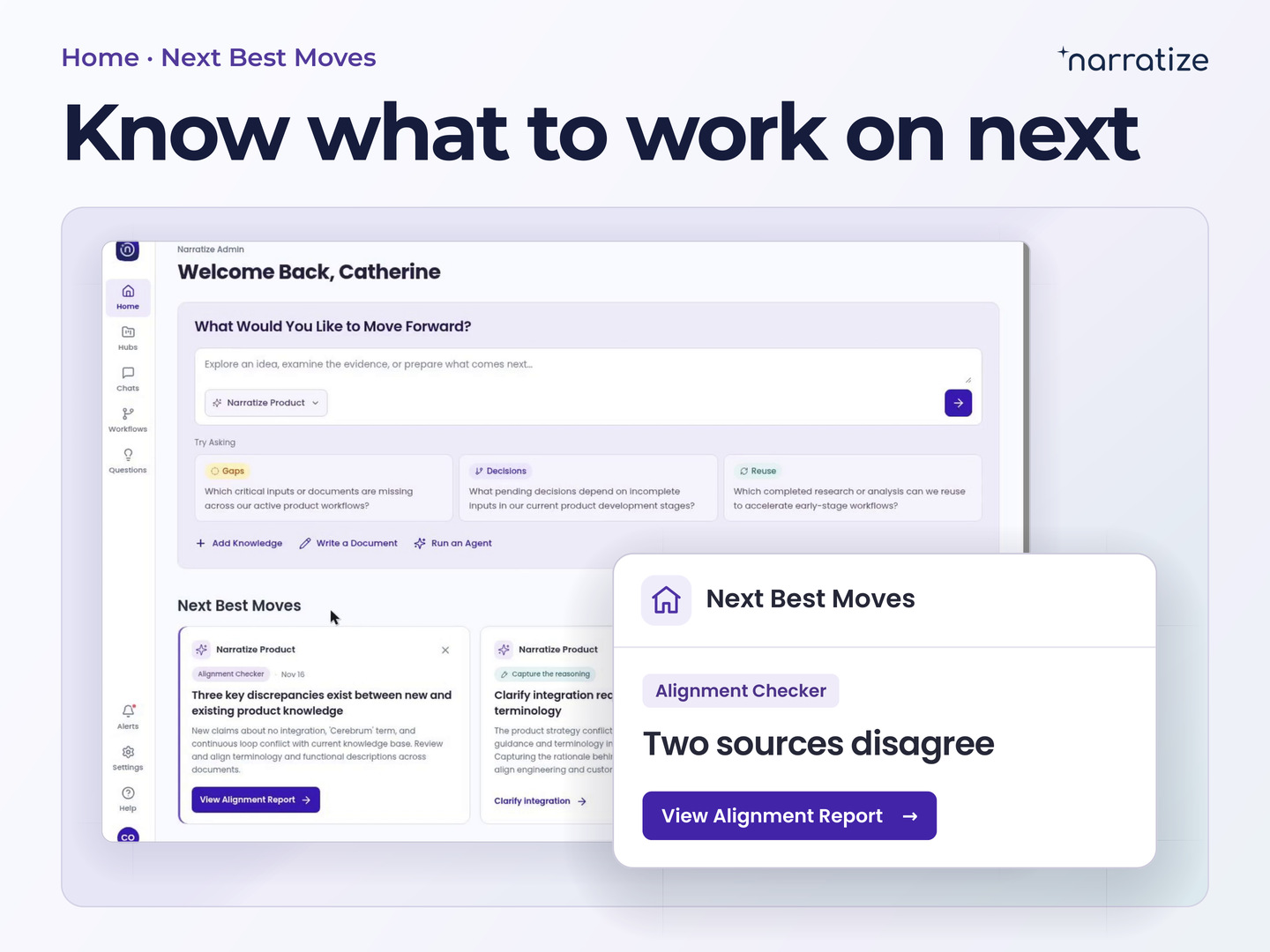
In a product’s Workflow tab, you can see what the next review requires. In Chat, you can compare those requirements with the work in the hub and draft a brief from sources you’ve checked. Together, the two screens help a project lead walk into the meeting ready to explain what the team learned and which decision it needs.
The updated experience rolls out the week of November 23. Follow the flow with a packaging team developing a recyclable pouch that must maintain its seal throughout the customer’s expected shelf life.
Find the current stage in Hubs and its requirements in Workflow
If you worked on the product recently, open it from Recent Hubs on the home page. If you’re covering several products, go to Hubs and turn on Show Workflows. You can browse by product group or alphabetically and see the current stage alongside each hub that has a workflow. That’s a useful place to start when two products have similar names or one is further along than you remember.

Open Workflow to see the stage’s Inputs Needed and Target Outputs. Then go to Knowledge to open the sources for the item under review. For the packaging team, those are the customer brief that defines shelf life and the trial report that documents how long the new pouch was tested.
Use Next Best Moves to find gaps before the review
On the home page, Next Best Moves surfaces Smart Suggestions. When knowledge is added to a hub, Gap Assessment can identify missing information, and Alignment Checker can flag evidence that disagrees. The card offers a next action, such as adding the missing material or opening an alignment report.
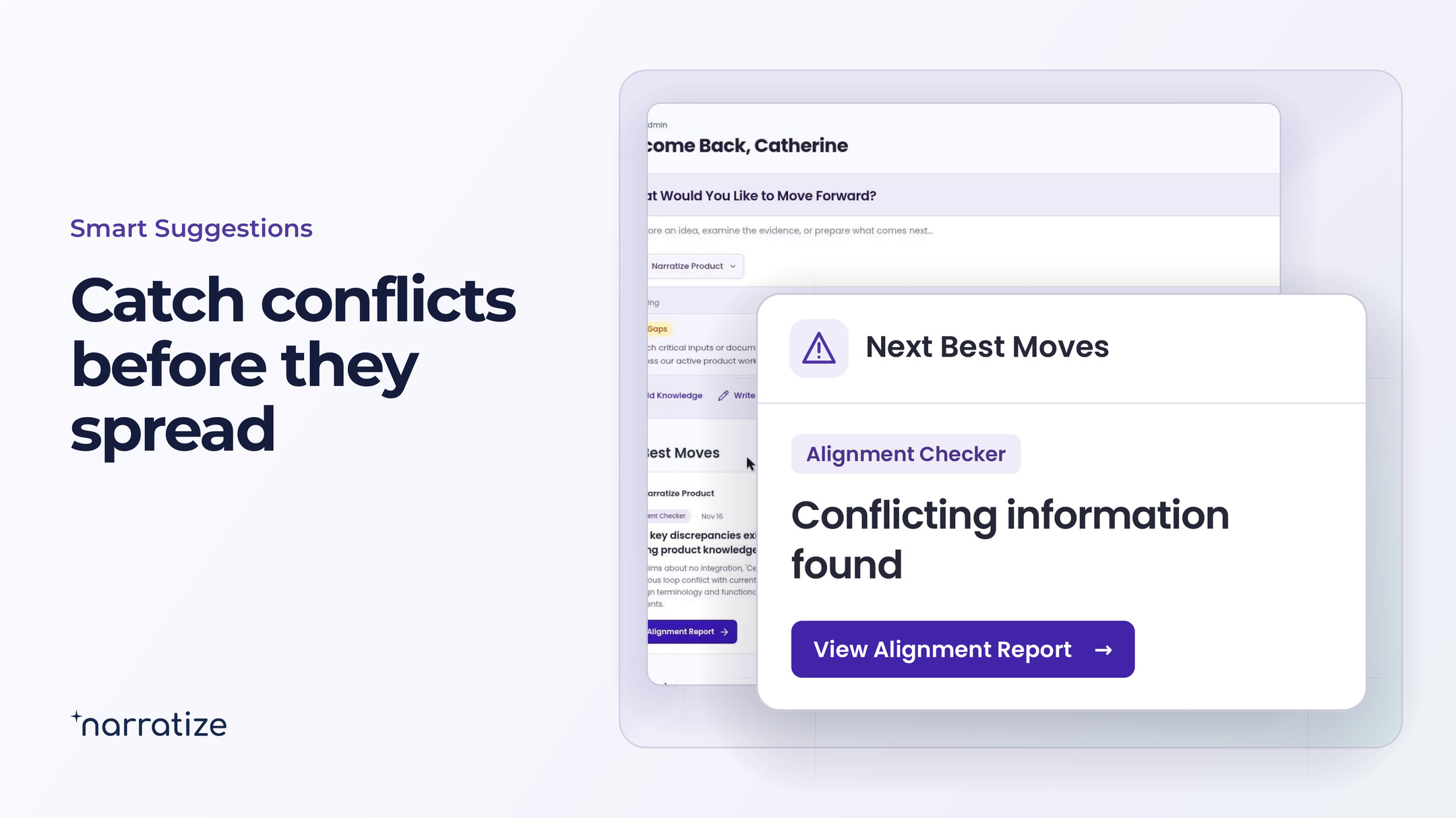
If two versions of the packaging brief give different shelf-life targets, open the report and check the source passages. Once the requirement owner confirms which version governs, the team knows exactly what to compare with its trial.
Ask Chat which parts of the requirement the evidence covers
The suggested prompts on the home page give you three ways into a review. Choose Gaps when you’re looking for missing evidence, Decisions when you need to weigh options, or Reuse when another project may have done relevant work. Use the hub selector to set the scope. For the pilot in front of you, start with its own hub. Widen the selection when you’re ready to compare it with earlier trials.
Which shelf-life requirement does the packaging brief specify? Show me the test conditions in the pilot report and cite both sources. Which parts of the requirement still need evidence?
Open the citations. In this example, the test duration matters as much as the reported seal strength. If Chat points to a passing result, check how long the samples were stored and under what conditions. When you widen the search, ask which earlier trials used the same material and storage conditions. You may find a test method worth reusing even if the earlier result doesn’t establish that this package will pass.
If the latest brief lives in Google Drive, open the plus menu in Chat, choose Connectors, and select Google Drive if it’s available to you. Ask Chat to compare the brief with the pilot evidence in the hub. Your organization’s enabled connections and your account permissions determine what you can bring into the conversation.

Draft the review brief in Chat and save the team’s decision
Before the meeting, ask Chat to draft a short review brief from the sources you’ve checked. Ask it to summarize what the pilot established, identify the open shelf-life question, and name the decision the group needs to make. If your team has a review template, you can start a document from that template in Chat.
When the team reaches a decision, use Capture the Reasoning when it appears in a suggestion. Record what the team chose, the evidence it relied on, and what would make it reconsider. For the packaging pilot, a useful note might read, “Continue the shelf-life trial before approving the customer claim. The pilot met our initial seal-strength target. We still need results after storage for the full period specified in the customer brief.”
At the next review, open Chats to pick up the conversation. View in Hub takes you back to the product where it was saved. That gives you the thread of the discussion and a route back to the evidence that would change the decision.
Try this with the next decision on your agenda. Open the stage in Workflow, check one requirement against its source, and use the brief to bring the remaining question to the right reviewer.
Open your Narratize workspace